How to fix "Error: Can't Connect" while Bypassing T2 MacBook from FRPFILE T2 Activator (Windows Tool) ?

If you get an Error: Can’t Connect – {“status”:”error”.”message”:”Can’t SSH”} while bypassing iCloud from T2 Mac Models by using FRPFILE T2 Activator (Windows Tool) then you can simply follow the below instructions in order to solve this error. This error mainly comes because of the following two reasons:

  1. If locked MacBook has low battery.
  2. If Windows blocks the automatic driver installation process.

Please, make sure that the locked MacBook has more than 50% battery. If it’s not then plug the power cable and let it charged for some hours. If it doesn’t has any battery backup then simply proceed the bypass by connecting to the power cable. In addition we might have to install the apple usb driver manually.


Steps to Install Apple USB Driver Manually

  • Step 1:
    Repeat the same bypass steps until you get “Error: Can’t Connect” message on FRPFILE application and keep it open.

  • Step 2:
    Open Device Manager on Windows Computer. (Choose Any One Steps)

    👉🏿 Press (Window + R) Key from the keyboard and type devmgmt.msc and Click on OK Button 


    OR,

    👉🏿 Right Click on Windows icon and Click on Device Manager


  • Step 3:
    Once the Device Manager is Launched, Right Click on “Apple USB Multiplexor” having the yellow warning sign and Click on Update Driver.

  • Step 4:
    Click on “Browse my computer for drivers”.

  •  Step 5:
    Click on “Let me pick from a list of all available drivers on my computer” and Click on the Next Button.

  • Step 6:
    Make sure “Show All Devices” is selected and Click on the Next Button.

  • Step 7:
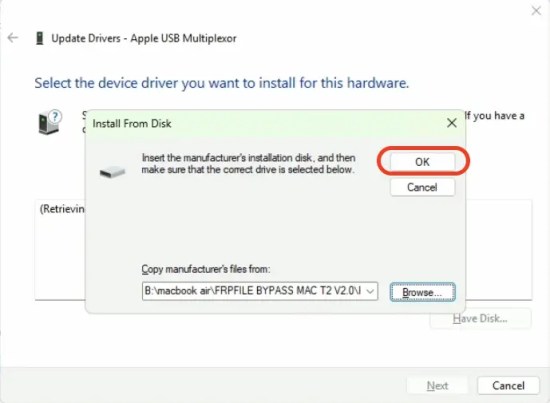
    Click on Have Disk.

  •  Step 8:
    Click on Browse.

  • Step 9:
    Locate the usbaapl64.inf file from the computer (this file can be found in the extracted FRPFILE BYPASS MAC T2 Folder > FRPFILE BYPASS MAC T2 > Drivers) and Click on Open.

  • Step 10:
    Click on OK.

  • Step 11:
    Click on Next.

  • Step 12:
    Click on Yes.

  • Step 13:
    Click on Close.

  • Step 14:
    Now it will show the “Apple Mobile Device USB Driver” without any yellow warning sign.

  • Step 15:
    Go to “FRPFILE BYPASS MAC T2” Application and Click on “Activate T2”.

  • Step 16:
    Now, it will show “Activate T2 Success” message.

Leave a Reply

Shopping cart

0
image/svg+xml

No products in the cart.

Continue Shopping

Latest Notice

Direct Contact Links